Post install
The first start
- The first boot takes several minutes. The e-ink panel only repaints when something changes, so it can look stuck: leave it alone for five minutes.
- After that, the phone can feel slow for a while. Android is still setting up apps in the background.
- Once that finishes, it is snappy again. Nothing to do but wait.
Choose a launcher
On first boot, the phone asks you to choose your default launcher:
- Choose inkOS or Katapult.
- Trebuchet, LineageOS's own launcher, is not made for e-ink.
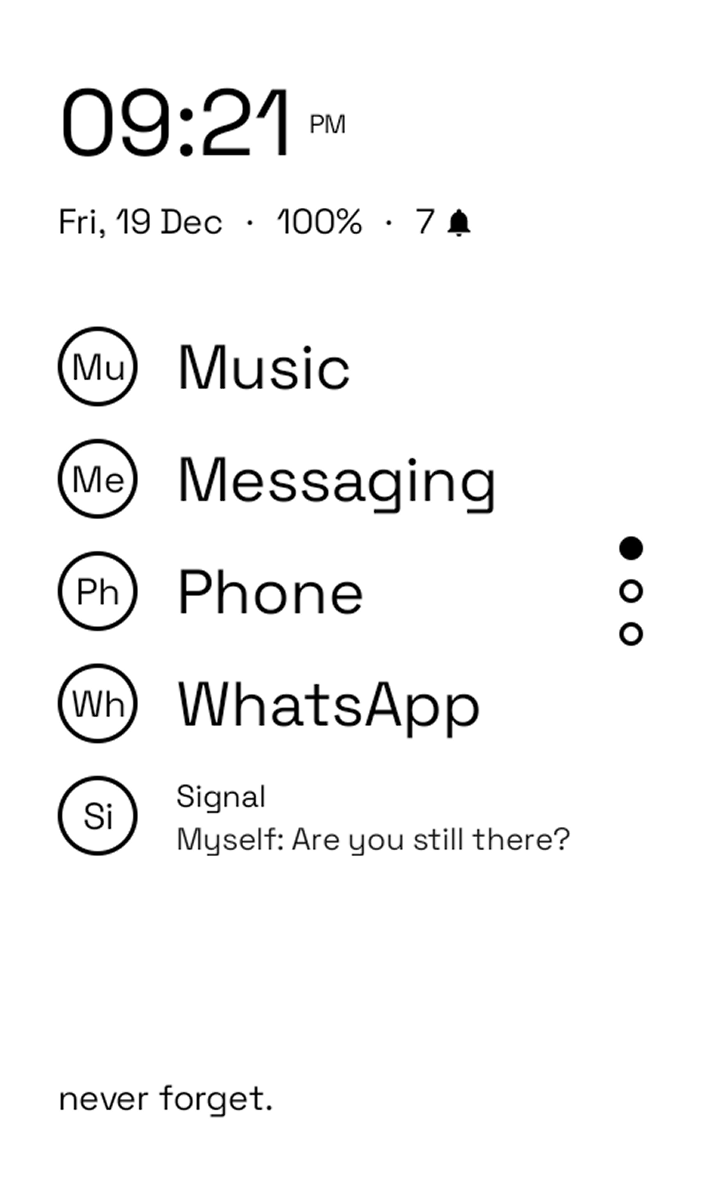
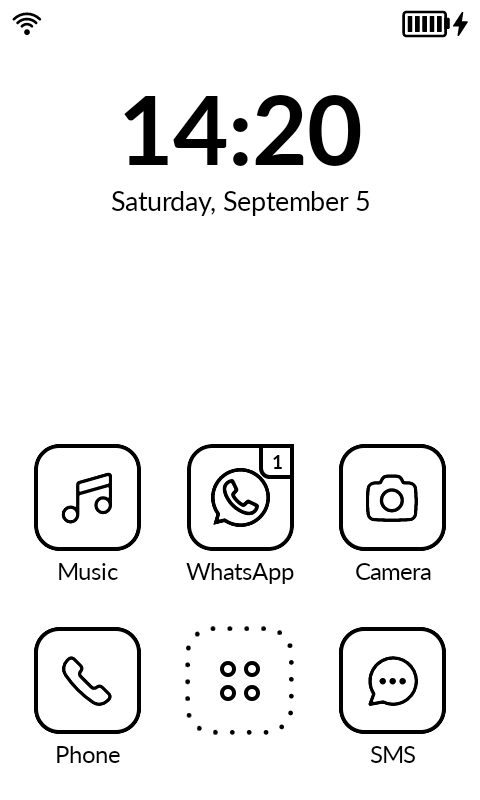
inkOS
- Its swipe-down gesture opens its own notification and toggle window, which gets in the way of Android's. Turn it off: inkOS settings → Gestures → swipe down → Disabled.
- To show the status bar: inkOS settings → Look and feel → Enable status bar.
Katapult
- To show the status bar: Katapult settings → Appearance → turn off Hide status bar.
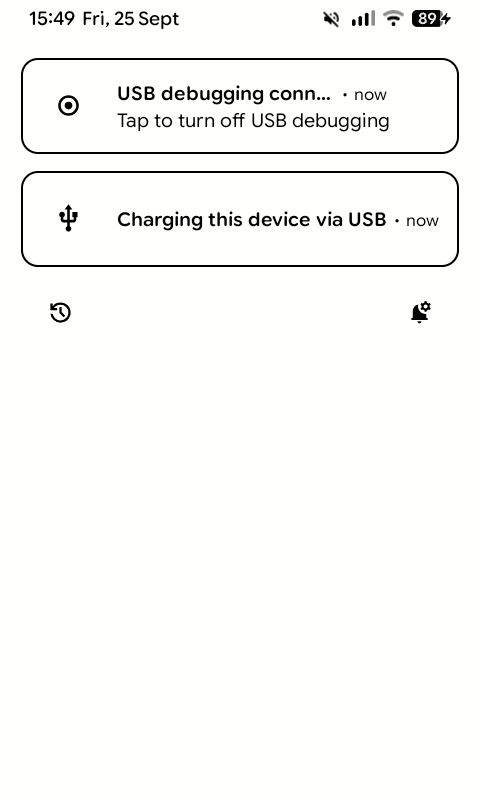
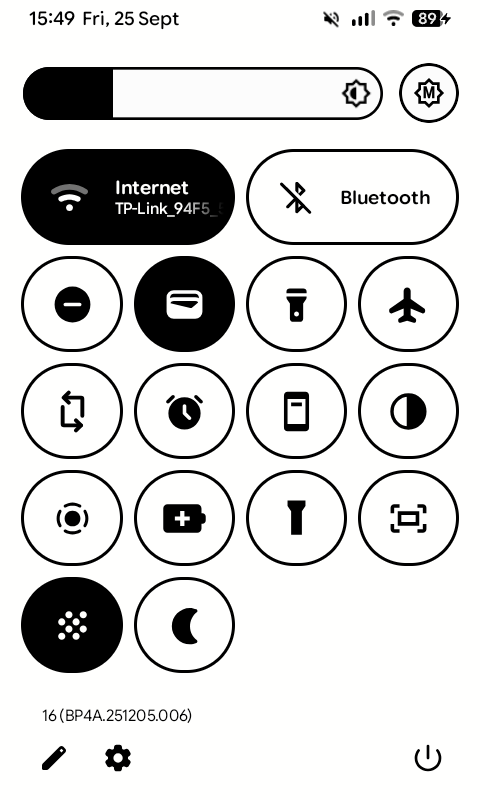
Notifications and quick settings
- Swipe down from the top left for notifications.
- Swipe down from the top right for quick settings.
Calls over 4G (VoLTE)
Where 2G and 3G are switched off, every call goes over 4G. Without 4G calling the phone has signal and mobile data and still cannot make or receive calls.
- 4G calling needs MediaTek's IMS app, which KompaktOS cannot include.
- You set it up once.
- The IMS settings are in Settings → System → TrebleDroid Settings → IMS features.
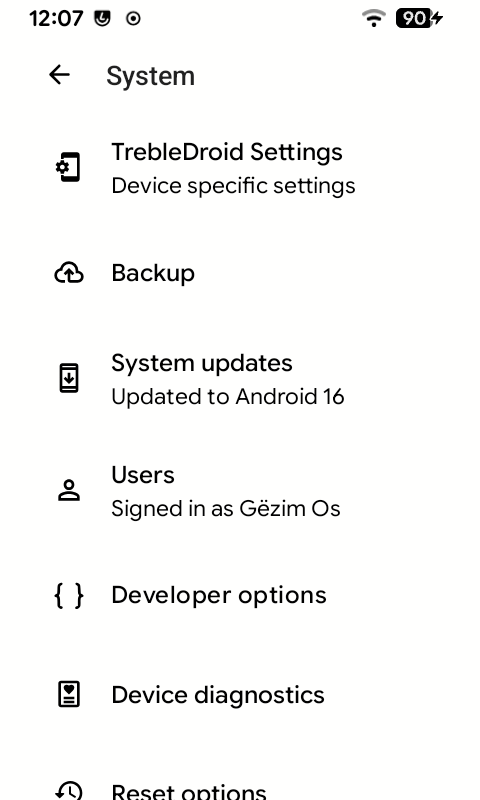
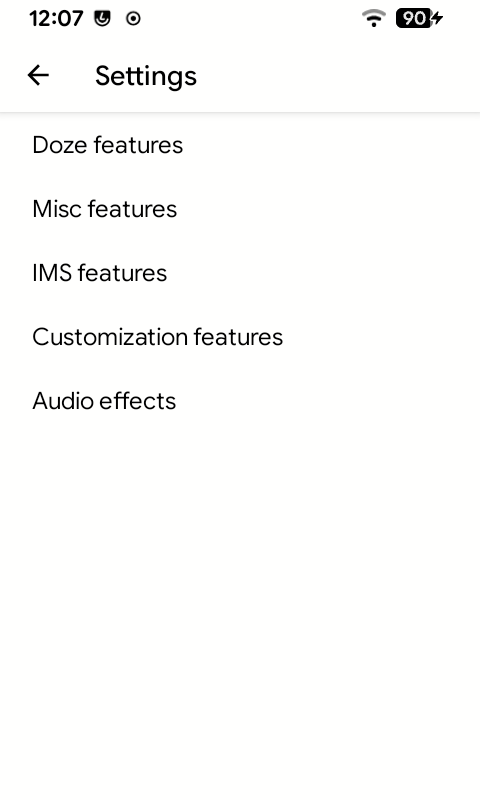
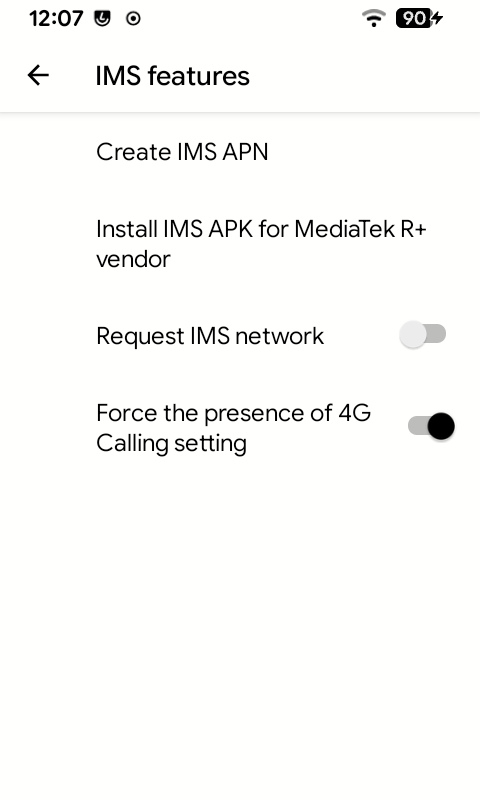
- In IMS features, tap Install IMS APK for MediaTek R+ vendor.
- When the download finishes, open it from the notification, or find it in Files under Downloads, and tap it to install. If you use Google Play services, you get an alert about it: tap Install anyway.
- Restart the phone.
- In IMS features, turn on Force the presence of 4G Calling setting. Some SIMs hide the VoLTE switch otherwise.
- Settings → Network & internet → SIMs → your SIM, and turn on VoLTE.
- Check it registered: Kompakt app → Settings → Diagnostics → Calls over 4G. You want IMS app Installed, 4G Calling On and Registered Yes. Registering can take a minute after the restart.
If Registered stays No
Check with your carrier for the correct APN settings, including the ims APN,
and add them in Settings → Network & internet → SIMs → your SIM →
Access Point Names. Then restart the phone.
Play Protect popup (GApps)
On the GApps edition Google may trigger Play Protect, which stops you from using the Play Store and other Google apps.
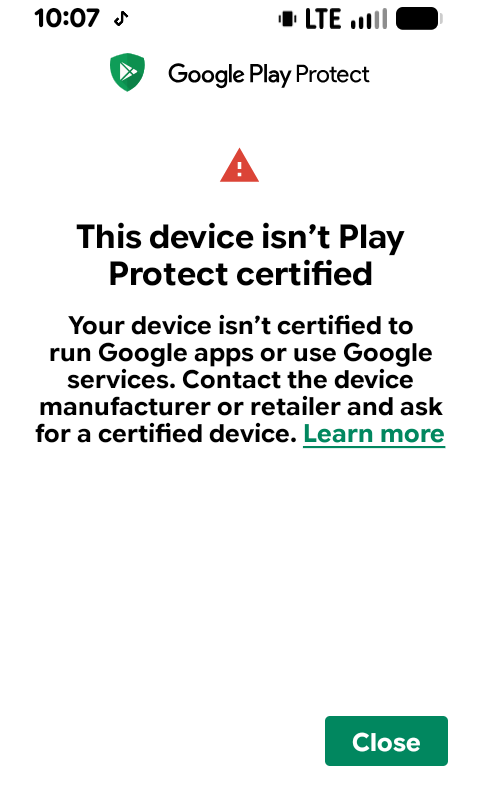
To avoid this, I recommend doing the following after you have finished setting up your device. You only need to do it once: updates keep it, only a factory reset undoes it.
You need adb.
-
Settings → System → Developer options → turn on Rooted debugging (with USB debugging on).
-
Read your device ID:
adb rootadb shell 'sqlite3 /data/data/com.google.android.gsf/databases/gservices.db "select * from main where name = \"android_id\";"'It prints
android_id|and a long number. That number is your ID. -
Open google.com/android/uncertified, sign in with the Google account you use on the phone, and paste the number.
-
Make the phone pick it up:
adb shell am broadcast -a android.server.checkin.CHECKINadb shell rm -f /data/data/com.google.android.gms/files/gmscompliance/shared/cache.pbadb shell 'rm -rf /data/data/com.android.vending/cache/*' -
Restart the phone, then turn Rooted debugging off again.
Settings may still say "not certified". What counts is that the popup is gone and the Play Store opens and installs apps.