SIM and eSIM
Two SIMs work at once. SIM 1 is always the tray. Slot 2 is either the second tray or the built-in eSIM, one at a time: the two share one slot in hardware.
Everything is under Settings → Network & internet → SIMs:
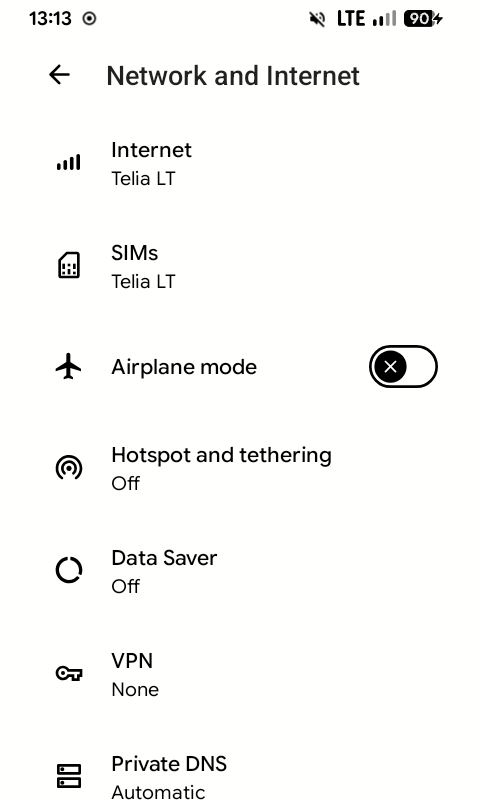
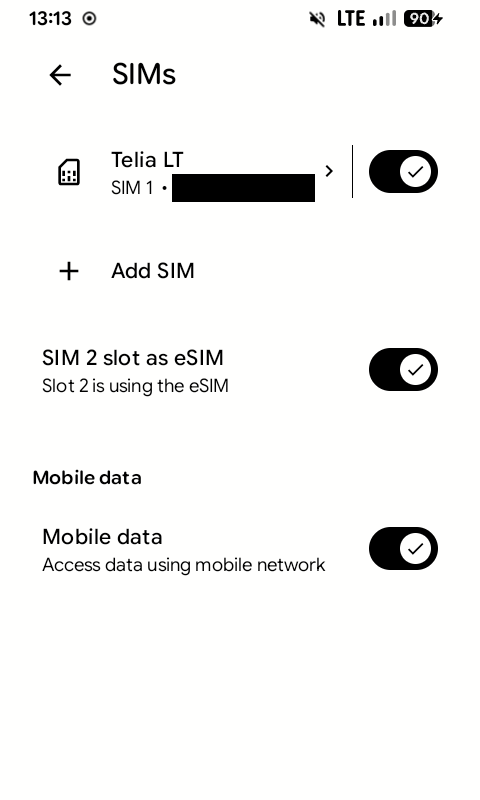
Setting slot 2 to eSIM
- If a physical SIM is in the second tray, turn it off first (its Use this SIM switch). Otherwise the change is refused.
- Turn on SIM 2 slot as eSIM. The phone restarts.
The eSIM tile in Quick Settings does the same. To go back to the tray, turn the switch off again; the phone restarts again.
Adding an eSIM
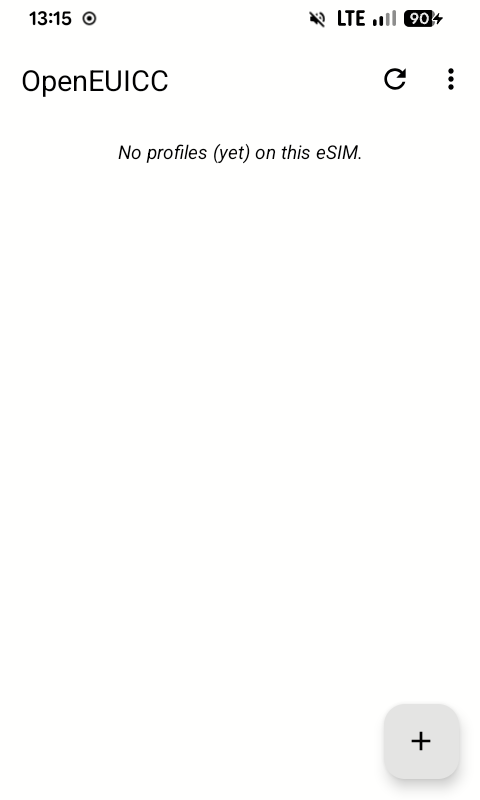
The eSIM is managed by OpenEUICC, an open-source eSIM manager that comes with KompaktOS. It downloads an eSIM from the QR code you were given, and switches between eSIMs: the chip can hold several, with one in use at a time.
You can add one from either place; both use OpenEUICC:
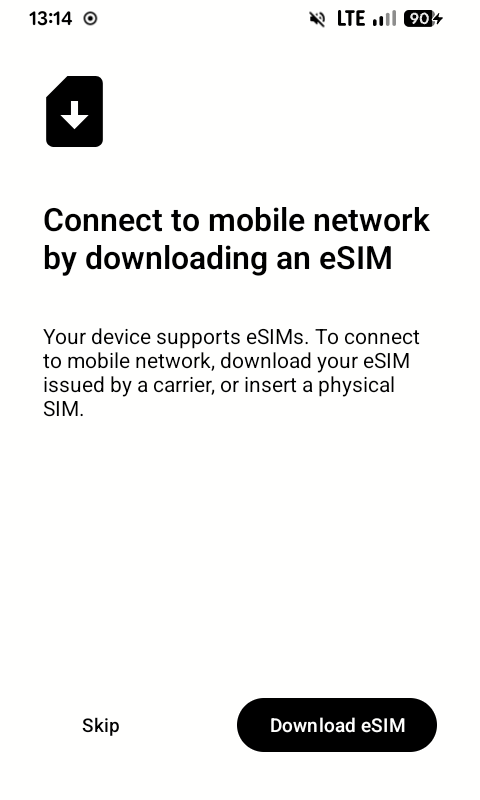
- Settings → SIMs → Add SIM → Download eSIM
- the OpenEUICC app → +
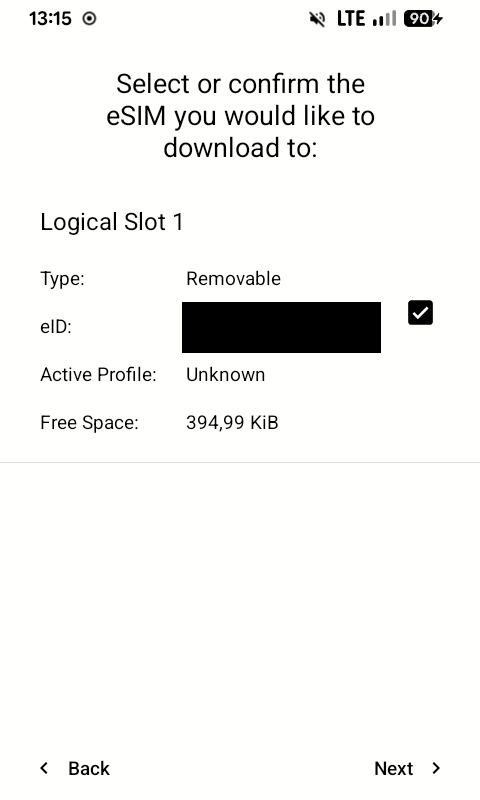
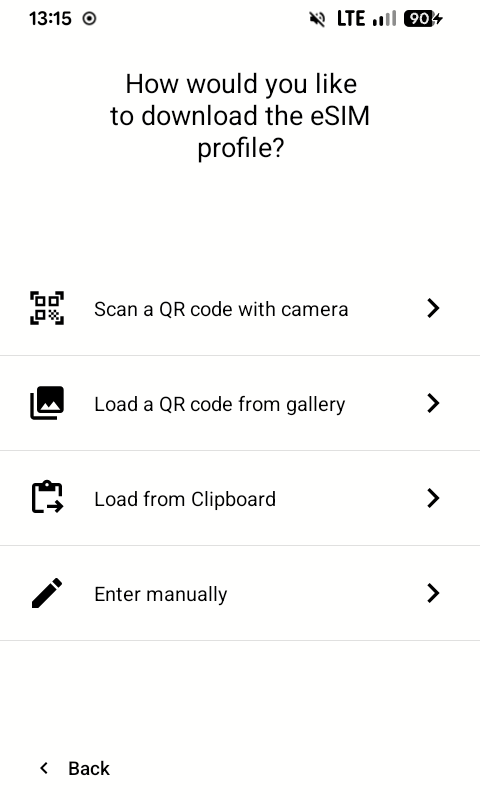
Set slot 2 to eSIM first, as above. When asked which eSIM to download to, pick the eSIM chip. It shows as Logical Slot 1, because the slots are counted from 0. Then scan the QR code, load it from a picture or the clipboard, or type it in.
A SIM's own settings
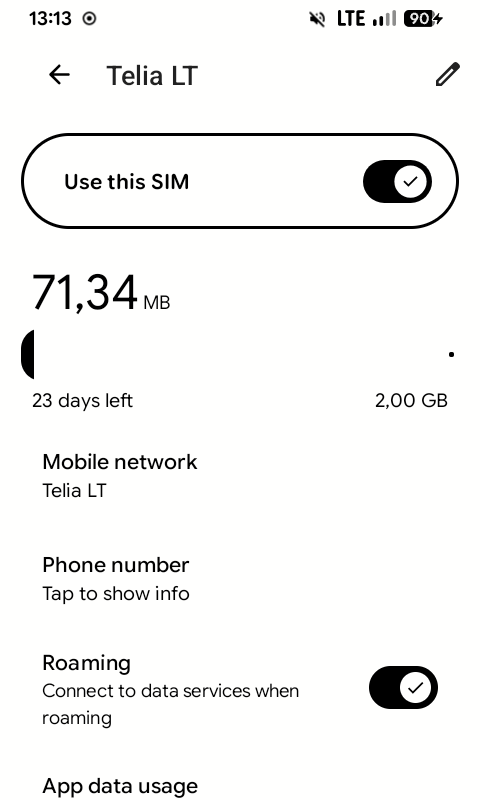
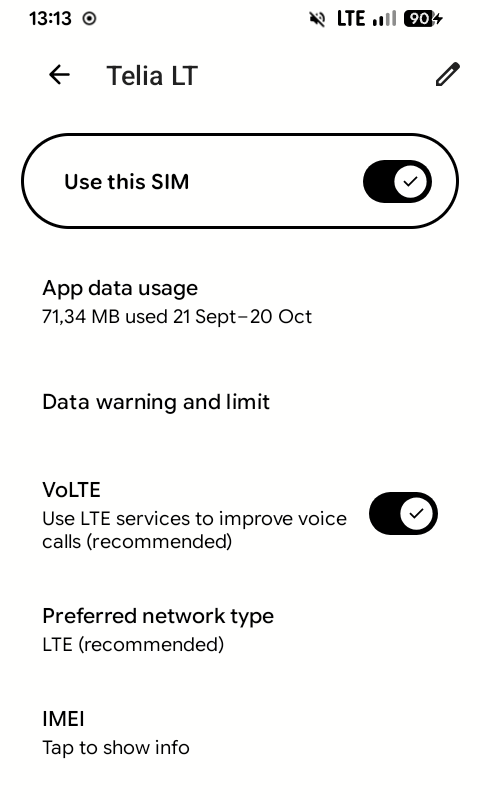
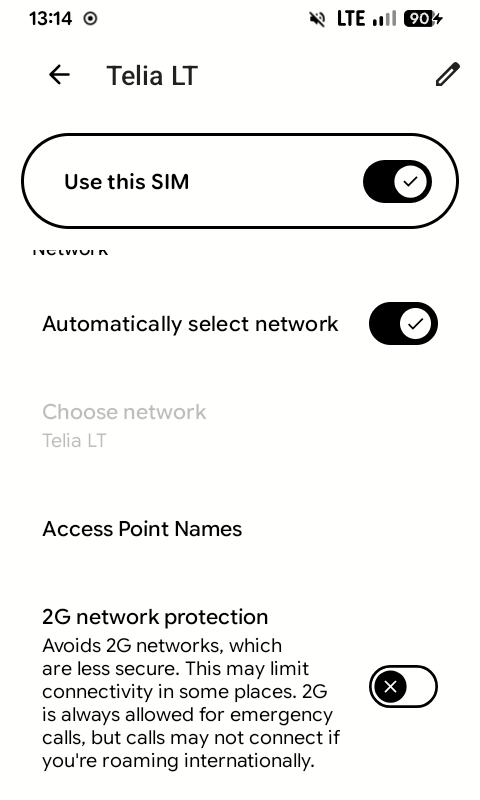
Tap a SIM in the list for its settings: data usage, roaming, the phone number, VoLTE, the preferred network type and the access point names.