Kompakt features FAQ
Everything KompaktOS adds for the Kompakt, as short answers. Most of it lives in the Kompakt app, in the app drawer, which has four tabs:
| Tab | What is there |
|---|---|
| Display | E-ink mode, per-app modes, refresh on unlock, sleep screen picture |
| Offline | What the offline switch turns off |
| Style | Font, emoji, display width |
| Settings | Fingerprint sensor, key vibration, Recents key, battery |
The ⋮ menu holds Advanced: temperature offset and diagnostics.
The screen
What is ghosting?
- Faint traces of earlier screens left on the panel.
- The faster e-ink modes leave more of it; a full refresh clears it.
How do I clear ghosting by hand?
Any of these flashes the whole screen once:
- Long-press the home button. Works from anywhere.
- The Refresh tile in Quick Settings.
- Double tap the fingerprint sensor, once fingerprint gestures are on (Refresh the screen is the double tap out of the box).
Can it clear ghosting when I unlock?
- Kompakt app → Display → Refresh on unlock.
- Choose where the unlock comes from, any or all of:
- From the always-on display
- From the sleep screen
- From the lock screen
- The screen refreshes once, right after the unlocked screen is drawn.
- Off for all three out of the box.
Does locking the phone clear the screen?
- Yes. Every lock clears the panel with a white and black flash, as on MuditaOS.
Which e-ink mode should I use?
| Mode | Use it for |
|---|---|
| Fast | Scrolling and lists. Very high contrast; dark colours go black |
| Fast, soft | Dark apps. Same speed, keeps detail in dark colours |
| Fast + dither | Photos and gradients at speed. Dots of grey, no blink |
| Text | Reading. Sharp greys, slower |
| Quality | PDFs, comics, photos. Cleanest, slowest, blinks |
| Auto | Leaving it alone. Fast while the screen moves, quality when it settles |
- Set it in Kompakt app → Display, or tap the E-ink tile in Quick Settings to step through the modes.
- Each mode also has its own Quick Settings tile (E-ink: Fast, E-ink: Text…): a tap switches straight to it. Add them in the Quick Settings editor.
- More in E-ink.
Can one app have its own mode?
- Yes. Display → Per-app e-ink modes → pick an app → pick its mode.
- The app gets its mode when it opens; the Display tab's mode comes back when you leave it.
- Follow master mode gives it back the Display tab's mode.
- Apps that are always dark, such as Spotify, can be inverted to black on white: Invert colours on the same sheet.
- More in Per-app modes.
The picture is not clean enough, or redraws too slowly
- Kompakt app → ⋮ → Advanced → Temperature offset.
- A higher offset tells the panel it is warmer than it is: faster redraws, slightly less clean.
- Back to 0 for the cleanest picture.
Why is everything black and white, with no animations?
- In-between greys turn into a speckled pattern on the panel.
- See-through and moving effects flicker and cost a repaint each frame.
- So KompaktOS draws its screens in two inks, black and white, and animations are off.
- Lists turn a page per swipe instead of scrolling with your finger: one repaint per page instead of dozens.
Can I fit more on the screen?
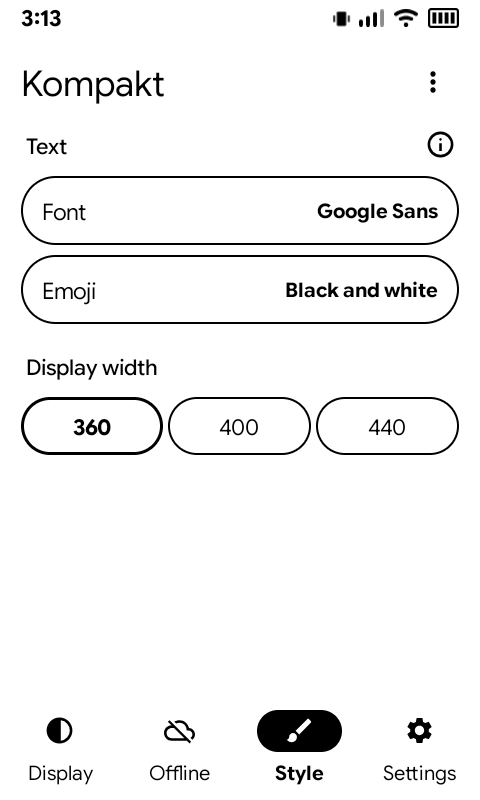
- Kompakt app → Style → Display width: 360, 400 or 440.
- Wider fits more, with smaller text and controls. 360 is the default.
- The Width tile in Quick Settings steps through them.
Lock screen and sleep
Can I use my own sleep screen picture?
- Kompakt app → Display → Sleep screen picture → Choose picture.
- Fit shows all of it on white; Fill fills the screen and crops the edges.
- Default brings back the built-in picture.
- More in Sleep screen.
What does the always-on display cost?
- About 3–4% of the battery overnight.
- The phone sleeps and wakes once a minute to paint the clock.
- Shows the clock, notification icons and the battery level.
- Turn it on or off with the Always on display tile in Quick Settings.
- More in Always-on display.
Text
Can I change the font?
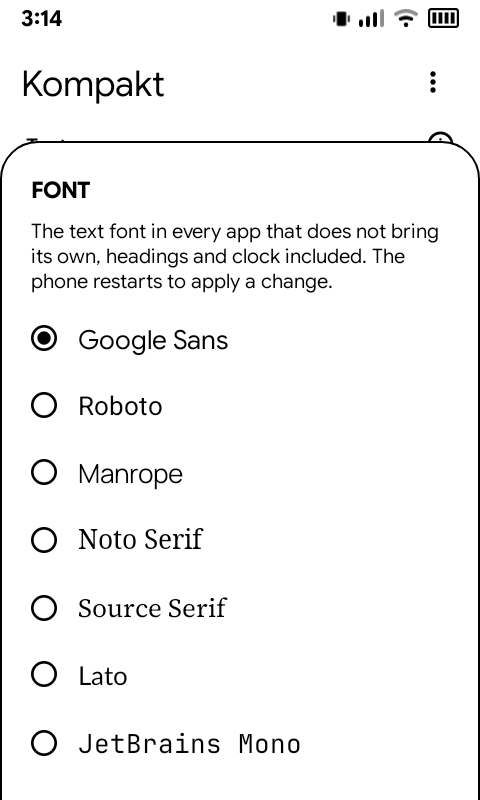
- Kompakt app → Style → Font.
- Google Sans (the default), Roboto, Manrope, Noto Serif, Source Serif, Lato or JetBrains Mono.
- Each name in the list is shown in its own font.
- It changes the text of every app that does not bring its own font, headings and the clock included.
- The phone restarts to apply a change.
Why is the Font option missing, or Google Sans not offered?
- It depends on your phone's language:
- Latin alphabets (English, German, Polish, Turkish, Vietnamese…): every font.
- Greek and Cyrillic: every font but Google Sans, which has no Greek or Cyrillic letters. Roboto is the default.
- Other scripts (Chinese, Japanese, Korean, Arabic, Hebrew, Hindi, Thai…): no Font row. None of the fonts has these letters, so Android's own fonts draw them, with Roboto for Latin letters and digits.
- A language change applies to the font at the next restart.
Can I have colour emoji?
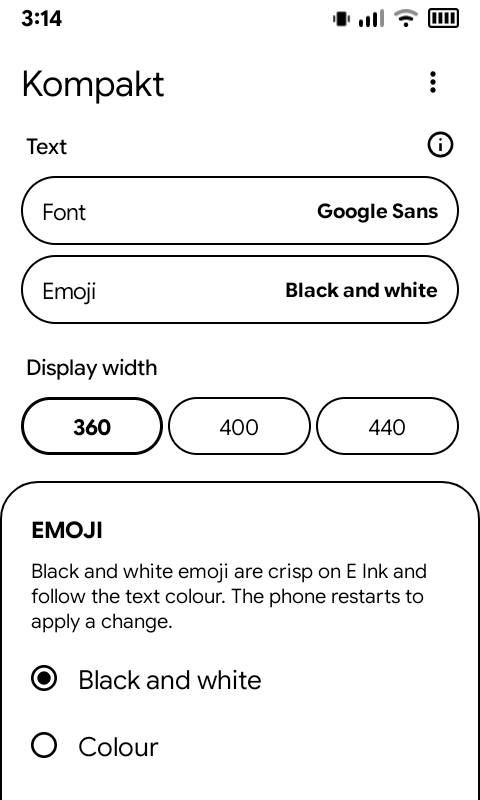
- Kompakt app → Style → Emoji: Black and white or Colour.
- Black and white is the default: crisp on e-ink, in the text colour.
- Flags and the newest emoji, which the black and white font does not have, stay in colour.
- The phone restarts to apply a change.
Buttons and sensors
What do the keys under the screen do?
- Home: a tap goes home; a long press refreshes the screen.
- Recents: a tap opens recent apps. With Hold Recents for quick settings on (Kompakt app → Settings), a long press opens quick settings.
- Vibrate the keys under the screen (Kompakt app → Settings) turns their buzz on or off.
Can the fingerprint sensor do more than unlock?
- Yes, while the phone is unlocked. Kompakt app → Settings → Fingerprint sensor → Use while unlocked.
- Swipe along it to scroll, move a D-pad, change the front light or press a key for Key Mapper.
- Double tap, triple tap and hold each get an action: refresh the screen, switch mode, open notifications or quick settings, turn the front light on or off, the warm or cold flashlight, and more.
- More in Fingerprint.
Can I turn on the warm flashlight from the lock screen?
- Yes. Settings → Wallpaper & style → Lock screen → Shortcuts, and pick Warm flashlight for one side.
- Flashlight is the cold light; you can put one on each side.
- The warm light is also a Quick Settings tile, Warm light, and a fingerprint action.
Which light does a long press of the power button turn on?
- The cold one, out of the box.
- Kompakt app → Settings → Power button light → Warm switches it to the warm one.
- The long press works with the screen off. Turn it on in Settings → System → Buttons → Power button → Long press for torch.
- With the light on, a long press turns it off again, screen on or off.
What does the offline switch turn off?
- Always: the mobile network and the microphone, in hardware.
- Your choice: Wi-Fi, Bluetooth and camera access. Kompakt app → Offline.
- A panel shows which way the switch now is.
- More in Offline switch.
Can the notification light have a colour per app?
- Yes. Settings → Notifications → Notification light → Apps → Add.
- More in Notification light.
Battery
Can I stop charging at 80%?
- Kompakt app → Settings → Battery → Charge limit: anywhere from 80 to 100.
- Charging stops at the limit and resumes a little below it.
- More in Battery.
Where are battery cycles and health?
- Kompakt app → Settings → Battery: cycles, capacity, health and the date the battery was first used.
- The cycle count is the real measure of wear. More in Battery.
Camera
Can photos and videos have a film look?
- In the camera, open the options, the row with 4:3, the timer and the grid. Style is the first option.
- Photos: Normal, B&W or Film (colour film grain).
- Videos: Normal, B&W or VHS.
- VHS records at SD and comes out 4:3, with the camcorder clock in the corner.
- B&W video keeps the resolution you recorded at.
- The style is applied once the photo or video is saved, in the background. A video takes a while; a message says when it is done.
- If a style cannot be applied, the original is kept.
- While a style is on, its icon shows at the top of the viewfinder.
Can the camera save to the SD card?
- Yes. In the camera's settings, turn on Save to SD card. The switch only shows while an SD card is in.
- Photos and videos go to the card's DCIM/Camera folder.
- With no card in, they go to the phone, so nothing is lost.
- A card set up as internal storage is already the phone's storage, so the switch does not apply to it. USB drives are never used.
Why does the camera call the back camera "Front"?
- The Kompakt has one camera, on the back.
- Some banking and ID apps refuse to continue without a front camera, so the back camera is offered as both.
- More in Camera.
Something is not right
Where can I see what is installed?
- Kompakt app → ⋮ → Advanced → Diagnostics.
- Shows which system, boot and vendor images are installed, calls over 4G, the notification light and the e-ink panel's values.
- Useful to include when you ask for help.
A Kompakt app setting says it needs our boot or vendor image
- Some features need KompaktOS's own boot or vendor image, not Mudita's.
- The full update package installs both. See Updates.