E-ink
An e-ink panel holds its image without power, and every repaint takes time and battery. The mode decides how each repaint is done: fast and rough, or slow and clean.
The Kompakt app has the controls, under Display.
Modes
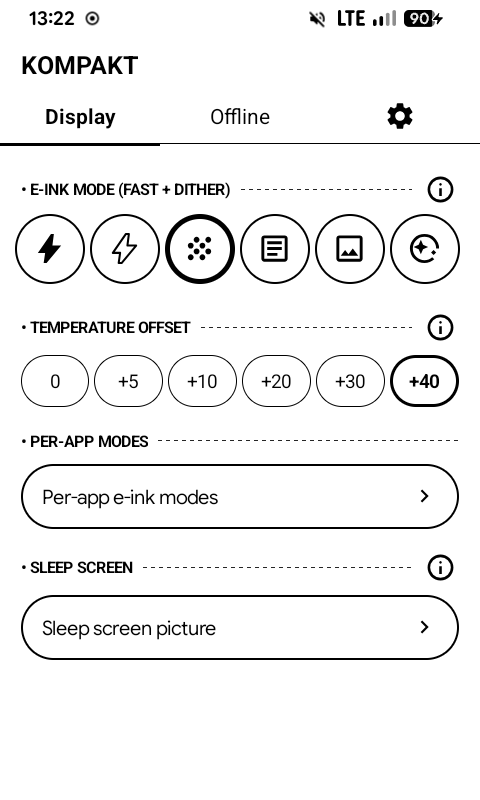
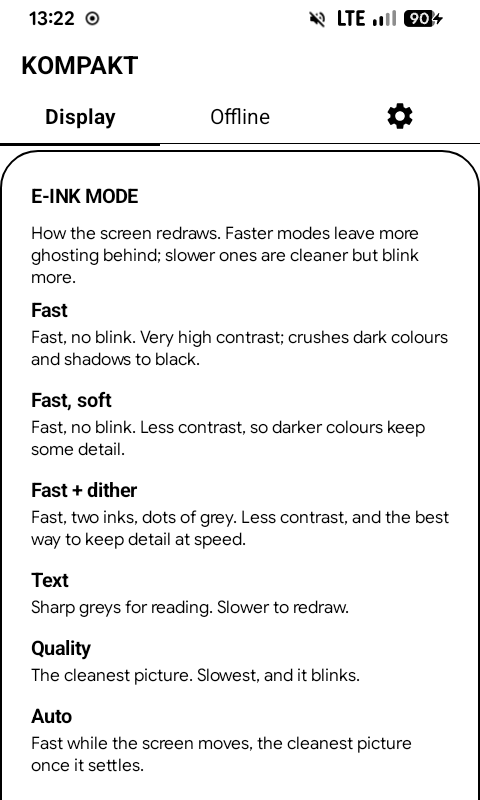
| Mode | What it does | Good for |
|---|---|---|
| Fast | One-bit, no blink. Very high contrast; dark colours crush to black | Scrolling, lists |
| Fast, soft | Same speed, less contrast, so dark colours keep detail | Dark apps |
| Fast + dither | Two inks with dots of grey, no blink | Photos and gradients at speed |
| Text | Sharp greys, slower | Reading |
| Quality | The cleanest picture, slowest, blinks | PDFs, comics, photos |
| Auto | Fast while the screen moves, quality when it settles | Leaving it alone |
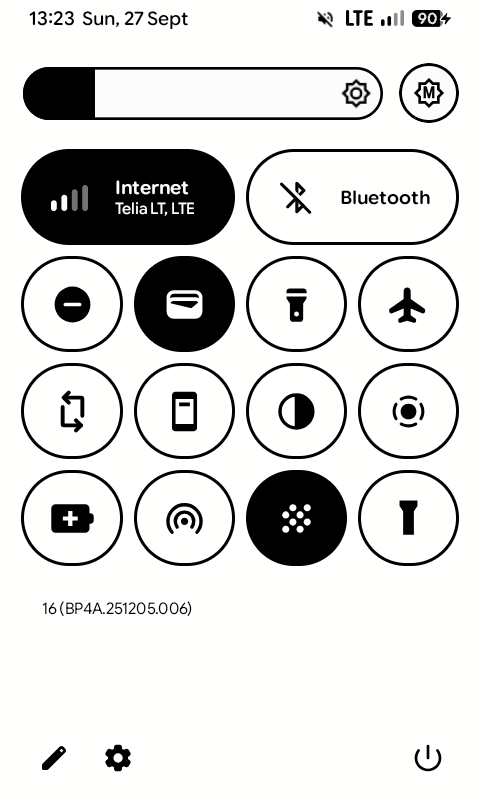
The e-ink tile in Quick Settings switches the mode without opening the app: each tap moves to the next one.
Clearing ghosting
The faster modes leave faint traces of earlier screens behind. A refresh flashes the whole screen once, which clears them:
- Long-press the home button. Works from anywhere.
- The Refresh tile in Quick Settings.
- A fingerprint gesture, if you set one to Refresh the screen: see Fingerprint.
Per-app modes
An app can have its own mode, and dark-only apps can have their colours inverted. See Per-app modes.
Temperature offset
Display → Temperature offset, the row of chips under the mode circles. The panel picks its waveform partly from temperature, and claiming a warmer panel makes it use fewer waveform frames — faster, at the cost of how cleanly the image settles.
Why everything is black and white
The panel shows greys badly: in-between shades turn into a speckled pattern, and see-through or moving effects flicker. So KompaktOS draws its screens in black and white, and animations are turned off.